This page will help guide you through using the NACHC Online Communities. If you have any other questions please reach out to NACHC staff. Follow these steps to get started.
In this guide:
How to set up your profile on NACHC Online Communities
To log in to NACHC Online Communities, head to community.nachc.org. Your email and password for the NACHC Online Communities are the same as your account on www.nachc.org.
Once you log in, you will be prompted to agree to our Community Rules & Etiquette and Privacy Guidelines.
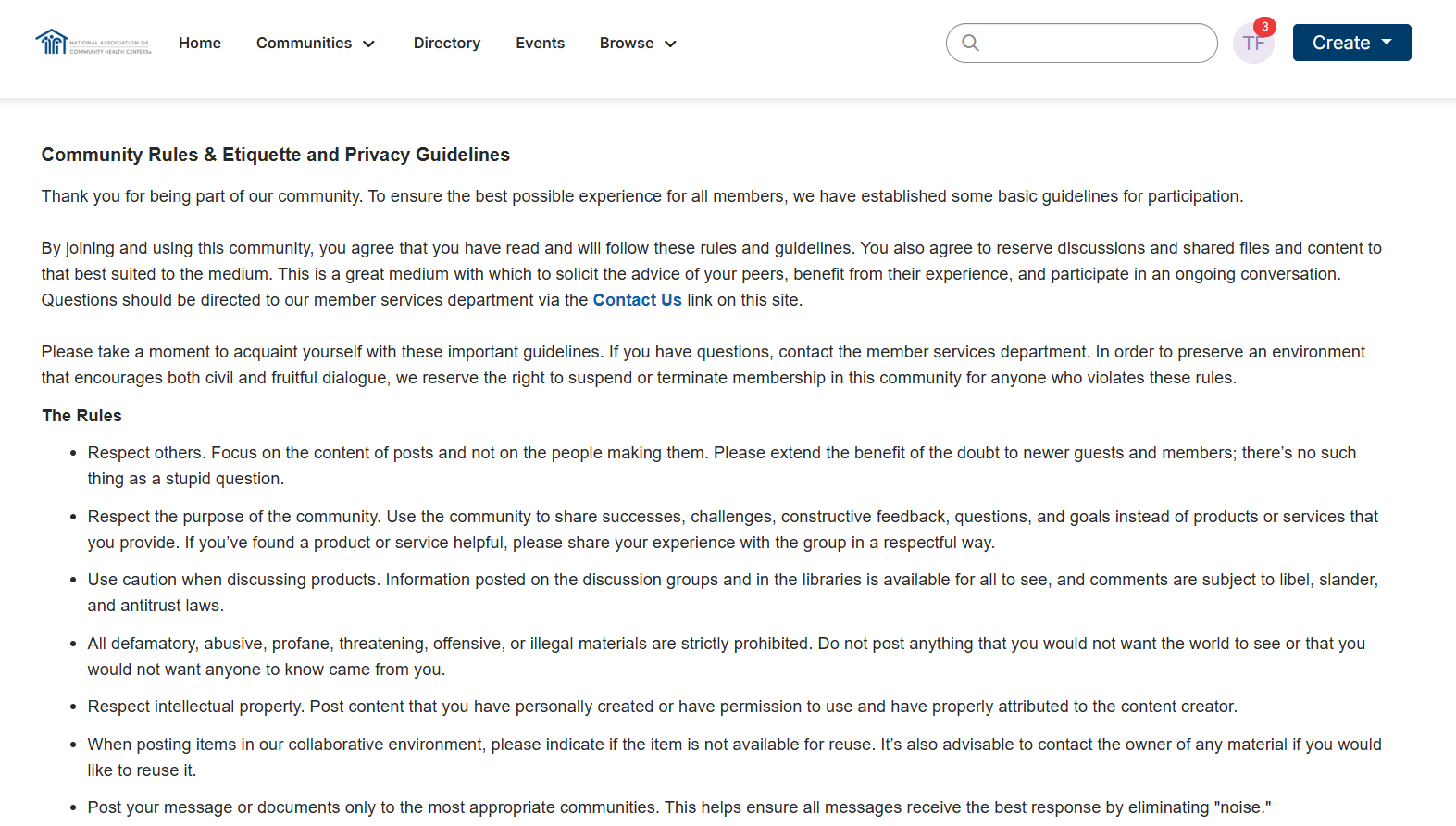
After agreeing, you will arrive at your personalized homepage. The following information will be shared from your NACHC profile:
- First and Last Name
- Informal Name
- Job Title
- Company
- Postal address
- Email address
- Phone number
- NACHC membership status
If any of this information needs to be updated, it should be done on the NACHC website. Once changed, the new information will be shared with the NACHC Online Communities platform within a few hours.
To complete your NACHC Online Communities account setup, add a profile picture and a biography:
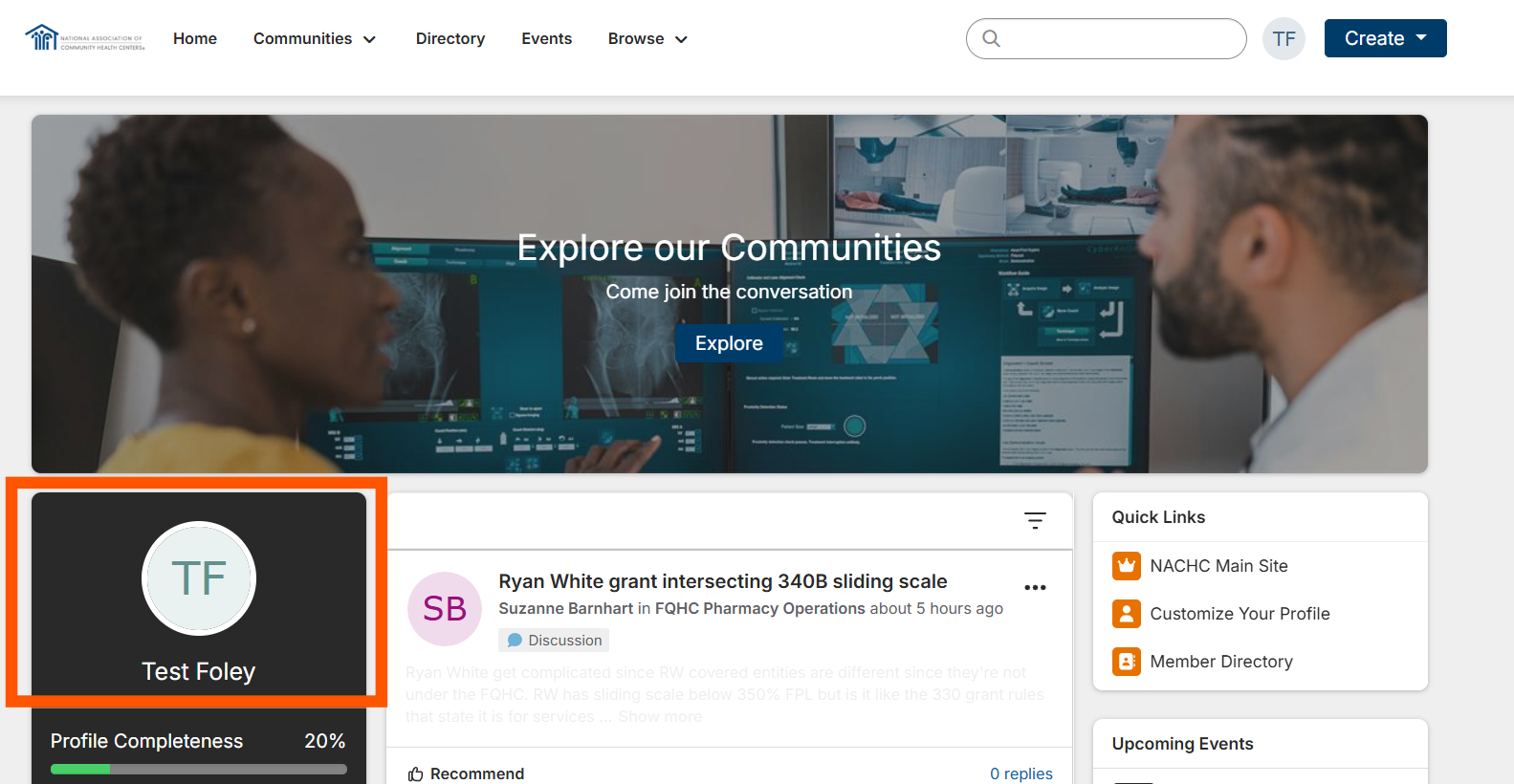
- To upload a profile picture, click the image at the top right of your homepage.
- Once you arrive at this page, you can add a profile picture by opening the Actions menu under the initial icon and selecting Change Image.
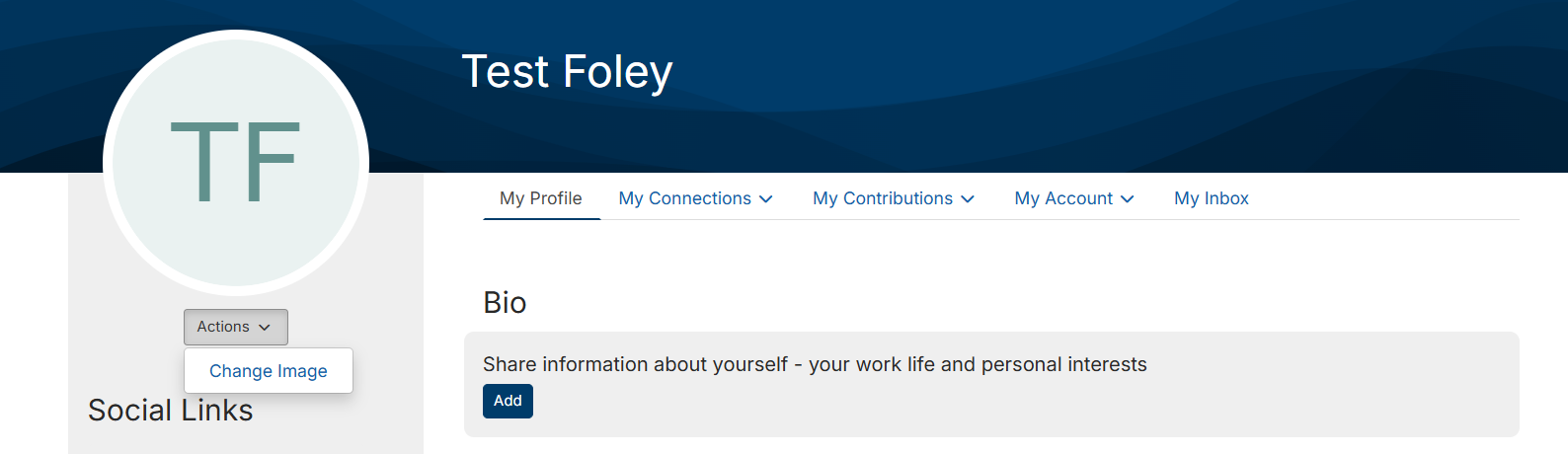
- Add a short biography talking about yourself and any of your professional associations.
How to set up your notification preferences on NACHC Online Communities
To edit your community notification preferences, click here or click Community Notifications under the My Account menu on your profile page.
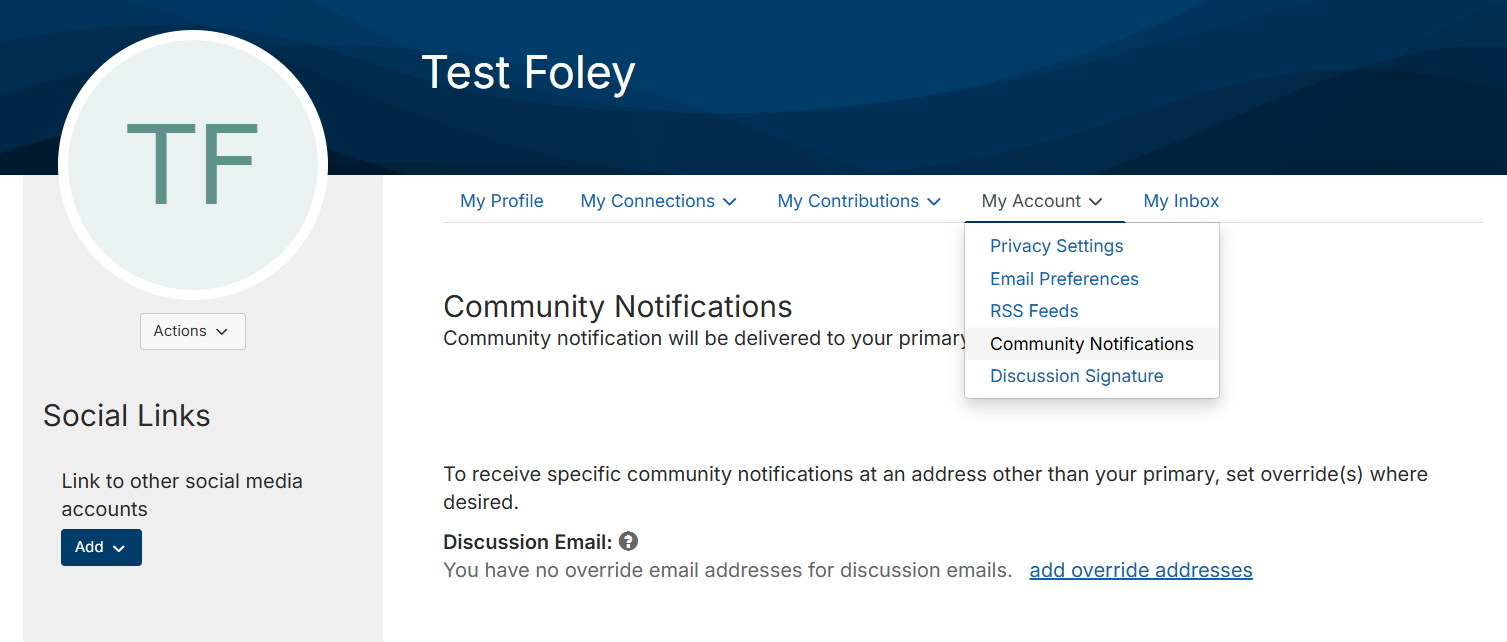
If you have joined a community, you can select one of three email options for each community you join:
- Daily Digest: once per day, you will receive an email with the previous day's discussion threads (recommended)
- Real time: any time someone posts in the selected community, you will receive an email
- No email: you will not receive emails about discussion posts in this community
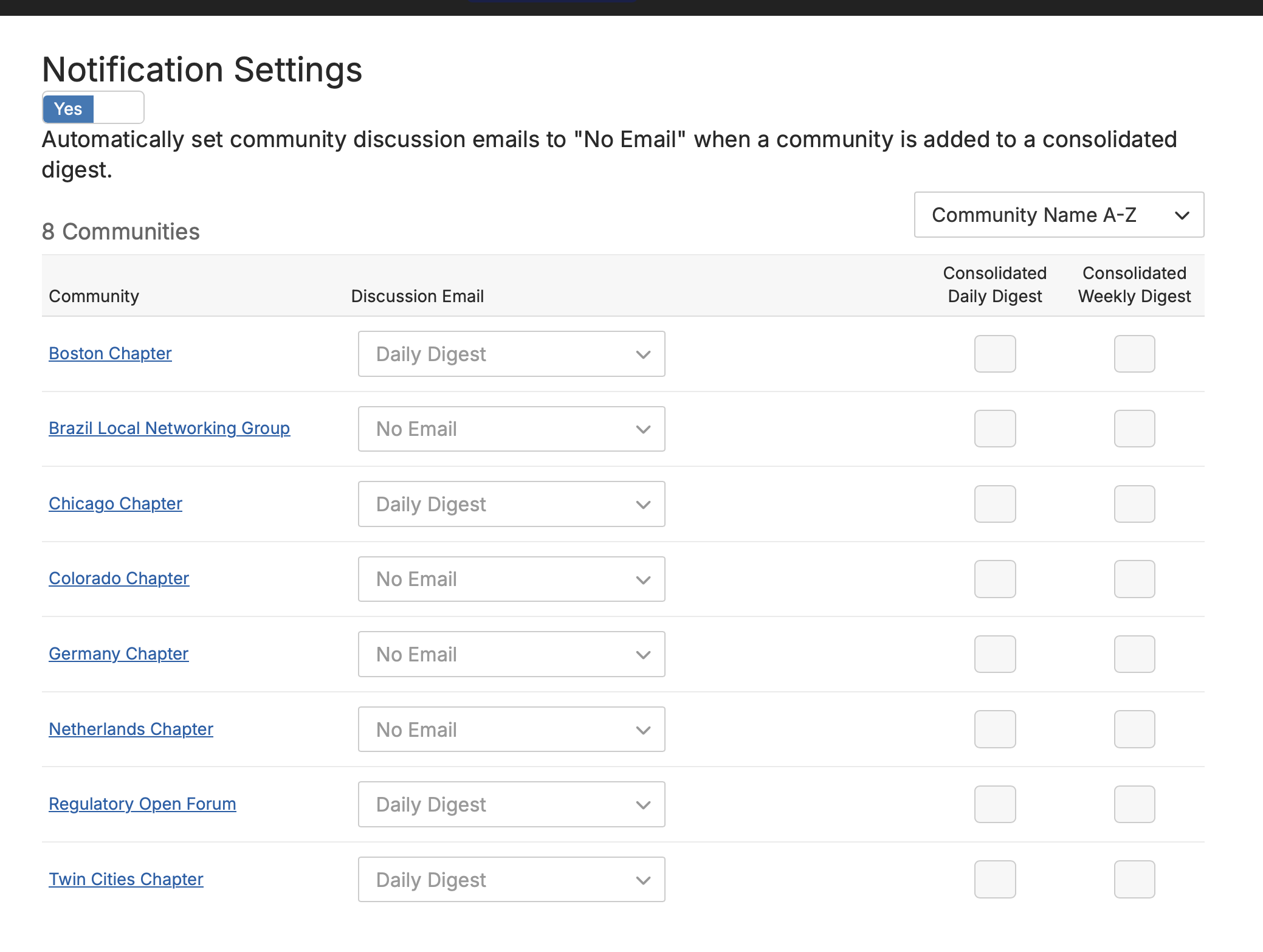
If you are a member of multiple communities, you also have the option to receive a Consolidated Weekly Digest or a Consolidated Daily Digest, which will update you on all activity from the communities you select.
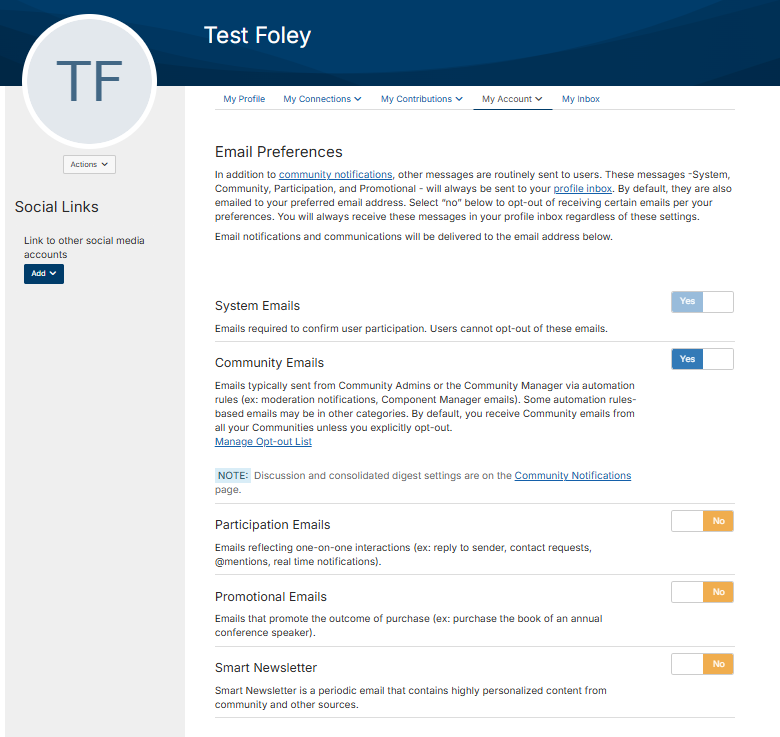
To edit your email notification preferences, click here or click Email Preferences under the My Account menu on your profile page.
You can opt-out of all email types except for System Emails. However, you may miss important communications if you opt-out of Community Emails or Participation Emails.
How to join a community
There are three types of communities in NACHC Online Communities: open, join by invitation, or closed. You can view all open or join by invitation communities by going to the Communities page and selecting All Communities.
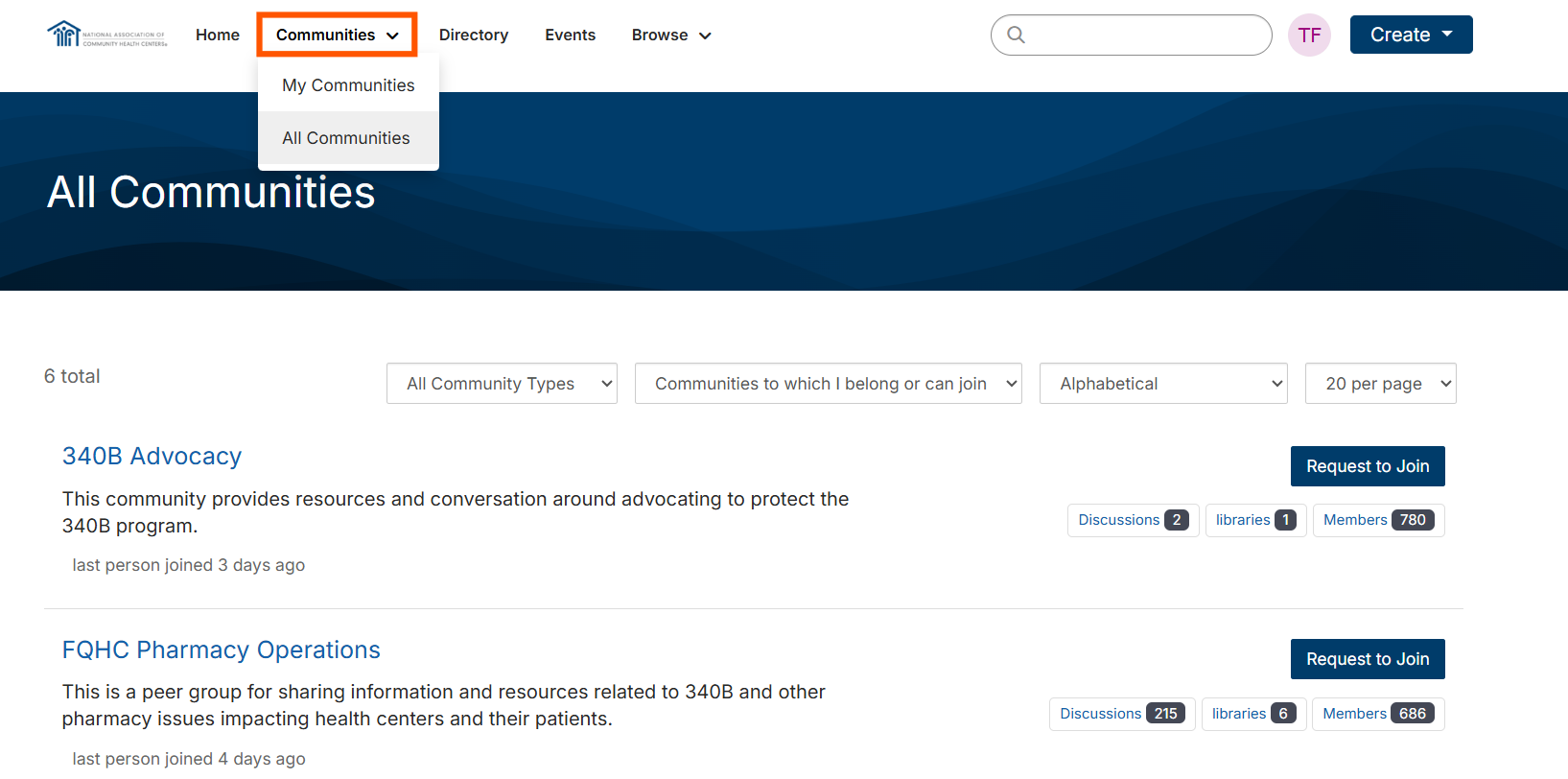
- Open communities require no action to access to their pages which includes discussion threads, libraries, and more.
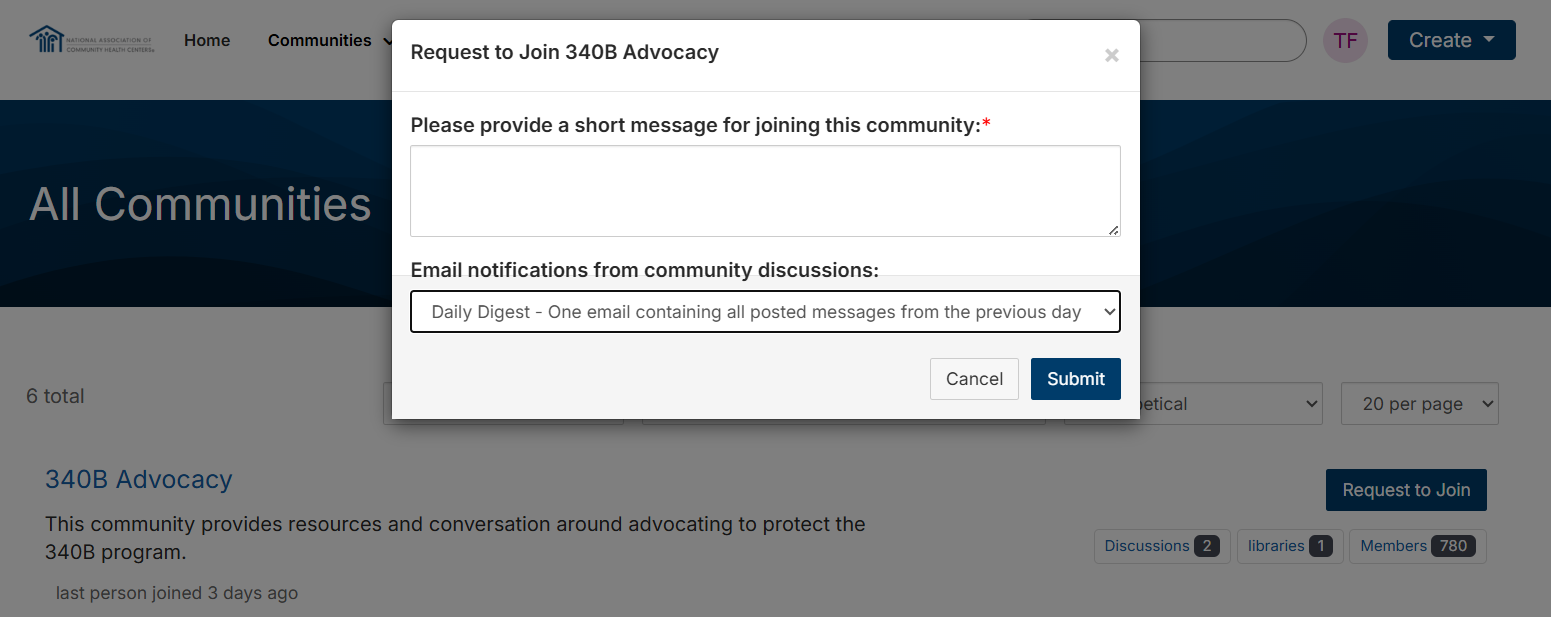
- Join by invitation communities require you to click the Request to Join button and answer a question. Then click the Submit button. As part of this request, you can also designate your email preference.
- Closed communities are only available to select individuals based on an event roster, special demographic, or other designation. If you are a member of a closed community, it will appear under the My Communities view.